


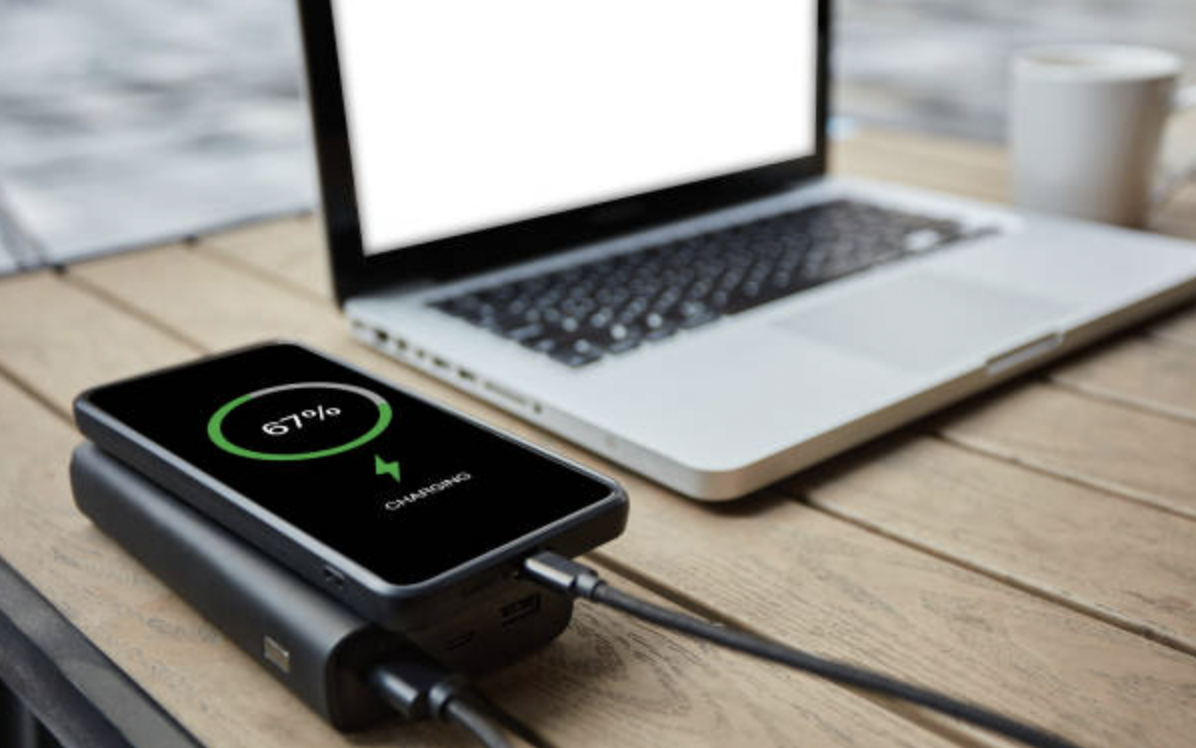
Smartphone battery anxiety is a common experience, watching that percentage drop throughout the day and wondering whether you’ll make it to your charger before it hits zero. While some battery drain is simply an unavoidable consequence of using a powerful, feature-rich device, a meaningful amount of daily battery consumption comes from settings and habits that can be adjusted without significantly impacting how you actually use your phone day to day.
What Actually Drains Battery Fastest
Screen brightness and display time are typically among the most significant battery consumers on modern smartphones, given how much of your daily phone use involves an actively lit screen. Location services, background app refresh, and push notifications from numerous apps also contribute meaningfully to battery drain, often more than people realize since these processes run continuously in the background rather than only during active app use.
This general hierarchy, display and background processes typically matter more than most individual app usage sessions themselves, helps prioritize which specific adjustments will actually make a meaningful difference versus which ones offer only marginal benefit for the inconvenience of implementing them.
Adjust Your Screen Brightness and Timeout Settings
Manually reducing your screen brightness, or enabling automatic brightness adjustment based on ambient lighting conditions, meaningfully reduces one of the most significant battery drains on any smartphone. Shortening your screen timeout setting, the amount of time before your screen automatically turns off after inactivity, from a longer default period to a shorter one, prevents your screen from remaining lit unnecessarily during moments when you’ve set your phone down but not manually turned off the display.
For devices with an OLED or AMOLED display, using a dark mode interface theme, where available, can provide additional battery savings specifically on these display types, since these screen technologies consume less power displaying black pixels compared to white ones, a distinction that doesn’t apply to older LCD display technology in the same way.
Manage Location Services Thoughtfully
Location services, particularly when set to allow continuous background access for numerous apps, represent a significant, often underappreciated battery drain. Reviewing which specific apps actually need location access, and adjusting apps that don’t require constant background location tracking to only access location while the app is actively in use, or disabling location access entirely for apps where it isn’t necessary, can meaningfully improve battery life without noticeably impacting the functionality you actually rely on regularly.
Control Background App Activity
Many apps continue running processes in the background even when you’re not actively using them, checking for updates, refreshing content, syncing data, all of which consume battery without providing much immediate value if you’re not actually looking at that specific app in the moment.
Reviewing your phone’s background app refresh or background activity settings, and disabling this feature for apps where you don’t need real-time background updates, reduces unnecessary battery consumption from apps working in the background without your active engagement.
This doesn’t mean disabling background activity entirely for every app, some benefit from this functionality, messaging apps needing to receive notifications promptly, for example, but being selective rather than allowing unrestricted background activity for every installed app meaningfully improves overall battery performance.
Manage Notifications and Push Updates
Beyond background app refresh specifically, the sheer volume of push notifications many phones receive throughout the day contributes to both battery drain and, for many people, a fair amount of unwanted interruption and distraction.
Reviewing your notification settings and disabling notifications for apps where they’re not valuable reduces both battery consumption and the broader mental noise of constant notifications, providing a benefit beyond pure battery optimization.
Close Unused Apps, But Understand the Nuance
There’s some ongoing debate about whether manually closing apps you’re not actively using helps battery life, since modern smartphone operating systems are generally designed to manage memory and background processes efficiently on their own, meaning apps sitting in your recent apps list aren’t necessarily actively consuming significant battery just by being present there.
That said, apps that are misbehaving, consuming excessive battery due to a bug or poor optimization, can benefit from being force-closed specifically, and checking your phone’s battery usage breakdown by app periodically helps identify if any specific app is consuming disproportionate battery relative to how much you’re actually using it.
Keep Your Software Updated
Operating system and app updates frequently include battery optimization improvements alongside other features and security patches, and keeping your phone’s software reasonably current, rather than postponing updates indefinitely, ensures you’re benefiting from these ongoing efficiency improvements rather than running outdated software that may be less optimized for battery performance than current versions.
Manage Connectivity Features You’re Not Actively Using
Bluetooth, Wi-Fi, and cellular data connections all consume some battery even when not actively transferring significant data, and disabling connectivity features you’re not using at a given moment, Bluetooth when you’re not connected to any specific device, Wi-Fi when you know you’ll be somewhere without a network to connect to, provides modest but battery savings, particularly over an extended period without access to charging.
Consider Battery-Intensive App Usage Patterns
Certain activities, video streaming, gaming, GPS navigation, are inherently more battery-intensive than typical browsing or messaging use, given the combination of active screen use, processing demands, and often continuous location or connectivity requirements.
Being aware of when you’re engaging in these more demanding activities, and adjusting your expectations or charging behavior accordingly on days involving more of this kind of use, helps you plan more realistically rather than being surprised by faster than usual battery drain on specific days with different usage patterns than typical.
Use Battery Saver Modes Strategically
Most smartphones include a battery saver or low power mode that automatically implements several battery-conserving adjustments simultaneously, reduced background activity, dimmed brightness, limited background app refresh, when your battery reaches a certain level or when manually activated.
Using this feature proactively, rather than only reactively once your battery is already critically low, particularly on days you know will involve extended time away from a charger, provides a convenient way to implement multiple battery-saving adjustments simultaneously without needing to manually configure each individual setting yourself.
Battery Health Degradation Over Time
Beyond these day-to-day usage adjustments, it’s worth that smartphone batteries naturally lose some capacity over time and repeated charge cycles, meaning a phone that’s a couple of years old will generally have somewhat reduced maximum battery capacity compared to when it was new, regardless of how carefully you’ve managed the settings and habits covered above.
Most smartphones include a battery health monitoring feature that shows your current maximum capacity relative to the original design capacity, worth checking periodically to understand whether declining battery life reflects settings and usage adjustments needed, or simply normal battery aging that these adjustments can help manage but not entirely reverse.
Conclusion
Rather than implementing every possible battery-saving adjustment simultaneously, which can feel overwhelming and may meaningfully restrict functionality you actually value, prioritizing the adjustments that offer the most significant battery improvement relative to minimal impact on your actual daily phone use, screen brightness and timeout settings, selective location and background app management, generally provides substantial improvement without requiring you to sacrifice features and functionality you rely on regularly.
Frequently Asked Questions
Does using my phone while it’s charging damage the battery?
Modern smartphones are designed to handle this normally without significant additional harm, since built-in battery management systems regulate charging appropriately even during active use. The main consideration is heat, since using your phone for demanding tasks while charging can generate more heat than either activity alone, and excessive heat is a factor in long-term battery degradation, though occasional use while charging isn’t a significant concern.
Should I let my phone battery fully drain before charging it again?
No, this outdated advice applied to older battery technology and is actually counterproductive for the lithium-ion batteries used in virtually all modern smartphones. These batteries generally last longest when kept in a moderate charge range rather than regularly experiencing complete discharge, making a habit of topping off charge periodically throughout the day a better practice than deliberately draining to zero before recharging.
How much does dark mode actually help battery life?
This depends significantly on your specific display technology. On OLED or AMOLED screens, dark mode can provide a meaningful battery improvement, since these displays consume less power showing black pixels. On LCD displays, which illuminate the entire screen uniformly regardless of the colors being displayed, dark mode provides little to no battery benefit, making this a feature whose actual impact varies by your specific device’s display type.
Is it worth buying a portable charger or battery pack?
For anyone who frequently finds themselves away from a charging outlet for extended periods, work travel, long days out, a portable charger provides a practical backup that addresses battery anxiety more directly than optimizing settings alone can, particularly on days involving unusually heavy phone use. This is a complementary solution to the settings and habits covered above, rather than a replacement for them.
Why does my battery seem to drain faster in cold weather?
Lithium-ion batteries perform less efficiently in cold temperatures, which can cause your phone to show a lower battery percentage or drain more quickly than it would in more moderate conditions. This effect is usually temporary and related to the immediate cold exposure rather than permanent damage, and the battery typically returns to more normal performance once the device warms back up to a more typical operating temperature.
