


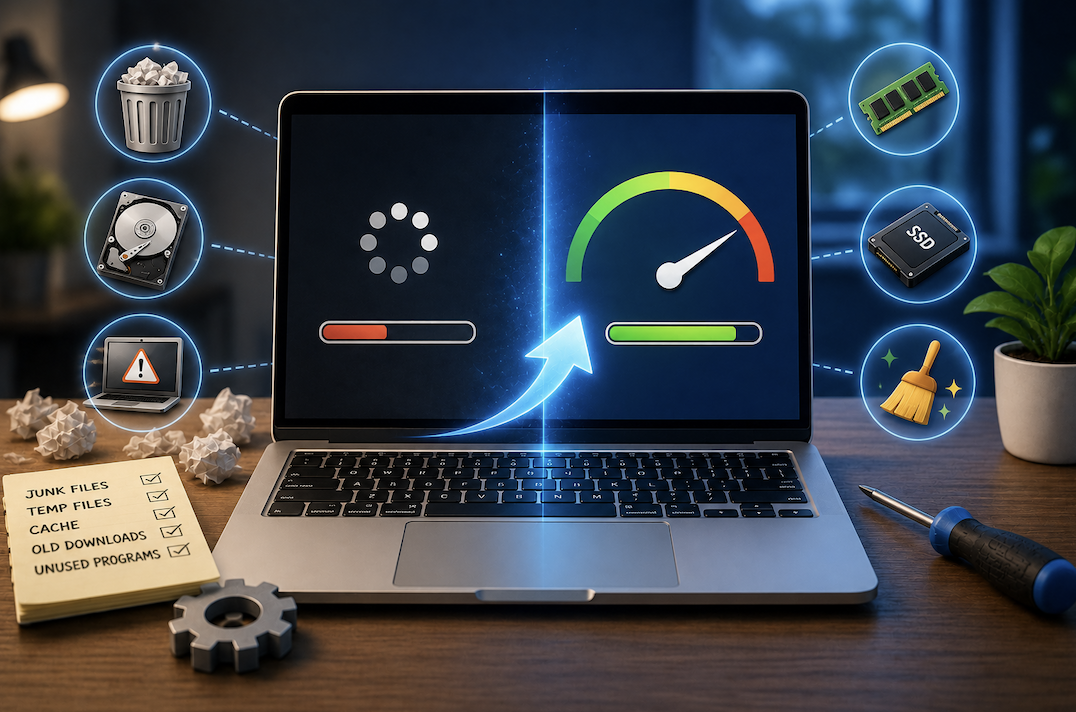
There’s a particular kind of frustration that comes from watching a loading circle spin for thirty seconds just to open a web browser. If your laptop has slowed down to the point where simple tasks feel like a chore, you’re not alone, and you almost certainly don’t need to replace it. Most sluggish laptops aren’t dying; they’re just cluttered, overloaded, or running software that’s fighting for the same limited resources. Before you spend hundreds of dollars on a new machine, it’s worth spending twenty minutes working through the fixes below.
Why Laptops Slow Down Over Time
A laptop rarely slows down because of one single problem. It’s usually a combination of small things that build up over months or years. Programs install themselves to launch automatically when you turn the computer on. Temporary files accumulate and are never cleared. Browser extensions pile up, each one quietly using memory in the background. Storage drives fill closer to capacity, which makes even basic file operations slower. And operating systems themselves get heavier with each update, adding features that assume you have more available memory than you did when you bought the machine.
None of this means the hardware itself has failed. In most cases, the same laptop that feels unusable today can feel nearly as fast as the day you bought it once the digital clutter is cleared out.
Start With What’s Running in the Background
The single biggest cause of slowdown for most people is background programs eating up memory and processing power without them realizing it. On Windows, open the Task Manager by pressing Ctrl, Shift, and Escape at the same time, then click on the Processes tab. Sort by memory or CPU usage and take a look at what’s actually running. You’ll often find browser tabs, cloud sync tools, chat apps, and update services all competing for resources at once.
On a Mac, open Activity Monitor from Spotlight search and do the same thing, sorting by CPU or Memory to see what’s using the most resources.
You don’t need to shut everything down permanently, but closing programs you’re not actively using, especially anything with multiple background processes, can free up a surprising amount of speed almost immediately.
Control What Launches on Startup
A big part of why laptops feel slow specifically when you first turn them on is the number of programs set to launch automatically. Each one adds to your boot time and keeps running quietly afterward. On Windows, you can manage this through Task Manager’s Startup tab, where you’ll see a list of every program set to launch with the system and an option to disable the ones you don’t need immediately.
On a Mac, this is managed through System Settings, under General and then Login Items, where you can remove anything that doesn’t need to open automatically.
A good rule of thumb: if you don’t use a program every single day, it doesn’t need to launch every single day either.
Clear Out Temporary Files and Free Up Storage
When a hard drive or solid-state drive gets close to full, performance drops noticeably, even on machines that used to run fine. This happens because the operating system needs free space to manage memory efficiently, and a nearly full drive makes that harder.
Windows has a built-in tool called Disk Cleanup that clears temporary files, system caches, and old update files. Search for it in the Start menu, select your main drive, and let it scan. You’ll often be surprised how many gigabytes of leftover junk have built up without you noticing.
On a Mac, go to the Apple menu, then About This Mac, then Storage, and click Manage to see a breakdown of what’s taking up space and recommendations for clearing it.
Beyond the built-in tools, it’s worth manually going through your Downloads folder, which tends to become a graveyard of installers, PDFs, and files you meant to deal with later and never did.
Check for Malware and Unwanted Programs
Sometimes a slow laptop isn’t just cluttered; it’s actively fighting something running in the background without your knowledge. Adware, unwanted browser toolbars, and low-level malware are common causes of unexplained slowdowns, especially if the laptop is also showing more pop-up ads than usual or your browser homepage has changed without your input.
Running a full scan with your operating system’s built-in security tool, Windows Security on Windows or the equivalent on Mac, is a good first step. If you suspect something more serious, a dedicated malware removal tool can catch things a basic antivirus scan might miss. This is worth doing even if you don’t suspect malware specifically, since it takes only a few minutes and rules out one of the more disruptive causes of slowdown.
Trim Your Browser
For most people, the web browser is where the majority of daily computing happens, and it’s also one of the biggest resource hogs on a slow laptop. Every open tab uses memory, and every installed extension runs in the background whether you’re using it or not.
Go through your extensions list and remove anything you installed once and never used again. It’s easy to accumulate a dozen extensions over the years for tasks you tried once. Each one adds up. Also get in the habit of closing tabs you’re not actively using rather than letting dozens pile up, since each open tab holds memory even when it’s sitting untouched in the background.
If you rely heavily on your browser for work, consider using a lighter or more memory-efficient browser as an experiment to see if it changes your day-to-day experience.
Consider a Hardware Upgrade Before a Full Replacement
If you’ve gone through all the software fixes and your laptop still feels slow, there’s a good chance the bottleneck is hardware, specifically the storage drive or the amount of memory installed. The good news is that upgrading these two components is often far cheaper than buying a new laptop, and the difference in speed can be dramatic.
If your laptop still uses a traditional hard drive rather than a solid-state drive, upgrading to an SSD is frequently the single biggest speed improvement you can make to an older machine. Boot times, program launches, and file transfers all become noticeably faster. Adding more memory, if your laptop supports it, helps, especially if you tend to have many browser tabs or programs open at once.
Not every laptop allows for these upgrades, particularly newer ultra-thin models with sealed cases, so it’s worth checking your specific model before assuming this is an option. A quick search for your laptop’s model number along with the word upgrade will usually tell you whether the memory and storage are user-replaceable.
Keep Your Operating System and Drivers Updated
It sounds counterintuitive since updates sometimes add more features and demand more resources, but staying current with operating system updates and driver updates often includes performance and efficiency improvements, along with security patches that prevent malware from taking hold in the first place. An outdated system is more vulnerable, and vulnerability often translates indirectly into slowdown through unwanted background processes you didn’t install on purpose.
Set aside time every so often to check for and install pending updates rather than letting them pile up and interrupt you at an inconvenient moment.
When It Actually Is Time for a New Laptop
To be fair, there are cases where a new laptop genuinely is the right call. If your machine is more than six or seven years old, if it can’t run current security updates, or if the battery no longer holds a meaningful charge, software fixes can only do so much. But for the vast majority of laptops showing signs of slowdown within the last few years, the cause is fixable without spending a cent.
Before you start browsing for a replacement, it’s worth setting aside a single afternoon to work through the steps above. Clear the startup programs, free up storage space, check for malware, trim your browser, and consider a memory or storage upgrade if you’re comfortable with it. Most people are surprised at how much life is left in a laptop they were ready to give up on.
A slow computer is annoying, but it’s rarely a reason to spend money you don’t need to spend. Give these fixes a try first, and there’s a good chance your laptop will feel new again.
Conclusion
If you’d rather skip straight to action, here’s a condensed order to follow: close unneeded background programs, disable unnecessary startup items, run Disk Cleanup or the Mac Storage manager and empty your Downloads folder, run a full malware scan, remove unused browser extensions and close excess tabs, and install any pending system updates. Doing all of this in one sitting typically takes less than an hour, and for most laptops it makes a noticeable difference the moment you restart.
Frequently Asked Questions
1. restarting my laptop actually help?
Yes, more than people expect. Restarting clears out memory that’s been slowly filled up by programs that were never properly closed, and it applies any pending updates that might be waiting in the background. If you tend to just close your laptop lid instead of shutting down or restarting, try doing a full restart at least once every few days.
2. Is it normal for a laptop to slow down after a few years even with regular maintenance?
Some slowdown is normal as software becomes more demanding over time, but a dramatic drop in speed usually points to one of the specific causes covered above rather than simple aging. A laptop that’s properly maintained should still feel reasonably responsive for basic tasks like browsing and word processing even after several years of use.
3. How do I know if it’s a memory problem or a storage problem?
If your laptop is slow mainly when you have multiple programs or browser tabs open at once, but fine when you’re only running one thing, that points to limited memory. If it’s slow across the board, including simple file operations like opening folders or saving documents, that more often points to a storage drive that’s full, aging, or still using older hard drive technology instead of a solid-state drive.
4. Can too many browser tabs really slow down a whole laptop?
Yes. Each open tab, especially on sites with videos, ads, or auto-refreshing content, continues using memory and processing power in the background even if you’re not actively looking at it. It’s one of the most common and most overlooked causes of a laptop that feels slow, specifically while browsing.
5. Should I use a separate program to clean up my laptop, or are the built-in tools enough?
For most people, the built-in Windows and macOS tools are enough. Be cautious with third-party cleanup software promising dramatic speed increases, since some are aggressive about removing files you actually need or bundle in unwanted extras during installation.
