


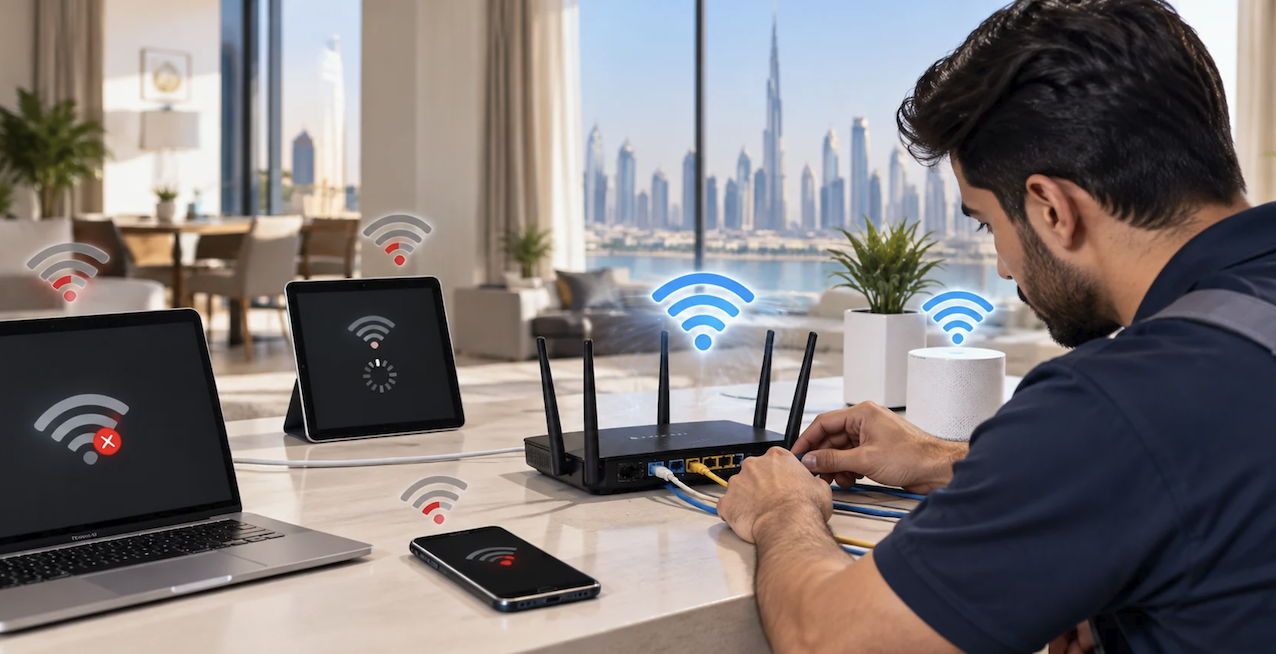
A slow or dropping Wi-Fi connection has an uncanny way of announcing itself at the worst possible moment, whether that’s in the middle of an important video call, a long-awaited streaming marathon, or a competitive online game.
Most home network problems trace back to a small, predictable handful of causes: poor router placement, physical interference, outdated equipment, or simply too many devices competing all at once for the same limited bandwidth. The good news is that almost none of these require a paid technician visit or a service call to fix properly.
This guide walks through the most common culprits behind a shaky connection and the practical steps that resolve them for good, starting with the simplest fixes and working steadily toward the ones that take a bit more time and effort to carry out.
Diagnosing the Source of a Wi-Fi Problem
Before trying any fix at all, it helps a great deal to narrow down whether the problem sits with the internet connection itself, the router, or one specific device in the house. Running a speed test on a device connected directly to the router with an ethernet cable, then comparing that result to the same test over Wi-Fi, quickly reveals whether the issue is the incoming internet service or something happening locally within the home network.
If the wired speed test comes back strong but the wireless one is noticeably slower, the problem almost certainly sits with the router itself, its placement in the home, or interference somewhere between the router and the struggling device. If both tests come back slow, the issue more likely traces back to the internet service itself, which may call for a conversation with the provider rather than a change at home.
Checking Whether the Problem Is Specific to One Device
A connection issue that affects every single device in the house points toward the router or the incoming service itself, while a problem isolated to one phone, laptop, or smart TV usually points to that specific device’s own Wi-Fi hardware, outdated drivers, or a setting unique to it. Testing a second, completely different device on the same network is a fast, reliable way to tell these two situations apart before spending time chasing the wrong fix.
Reading What the Router’s Status Lights Are Telling You
Most routers and modems use a simple set of indicator lights to communicate their current state, and learning what each one means saves a lot of guesswork. A steady light on the internet or WAN indicator usually signals a working connection to the provider, while a blinking or red light often points to a problem upstream of the router itself, something no amount of local troubleshooting will fix.
A quick glance at these lights before diving into any deeper diagnostics can immediately rule out entire categories of possible causes, saving real time that would otherwise go toward troubleshooting the wrong part of the setup entirely.
Repositioning Your Router for Better Coverage
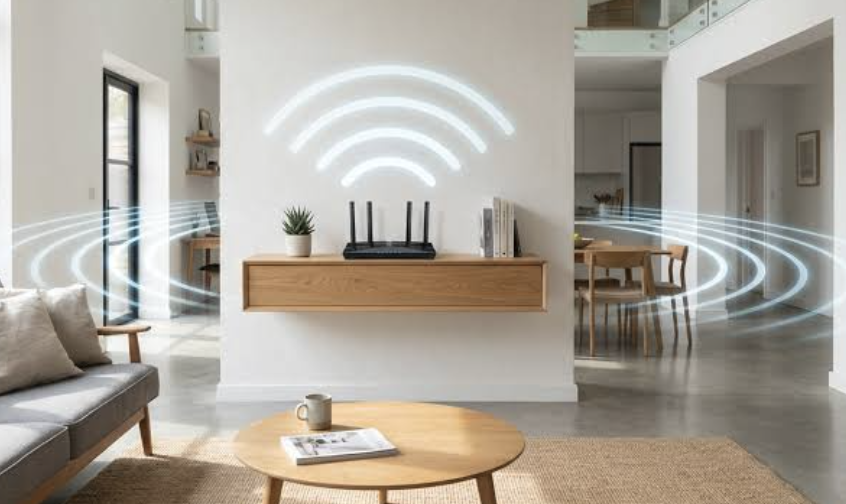
Router placement affects coverage far more than most people expect, and a router tucked away into a closet, hidden behind a television, or buried in a basement corner is fighting an uphill battle before it even starts broadcasting a usable signal.
- Place the router centrally in the home: a router near one corner of the house leaves the opposite corner with the weakest signal.
- Keep it elevated rather than on the floor: signal tends to spread outward and downward from the router, so a shelf or high surface improves coverage to other floors.
- Avoid placing it inside cabinets or behind solid furniture: even a closed cabinet door can noticeably weaken the signal passing through it.
- Keep distance from large metal objects and appliances: metal reflects and blocks wireless signals more than most materials in a typical home.
- Move it away from other electronics that share its frequency: microwaves, cordless phones, and some baby monitors can interfere with the same radio frequencies Wi-Fi uses.
A router moved from a back closet to a central, elevated spot in the home often produces a more noticeable improvement than any software setting change could offer on its own.
Why Walls and Floors Matter So Much
Not all building materials affect Wi-Fi signals equally. Drywall interferes very little, while brick, concrete, and plaster lose a real amount of signal strength as it passes through. A router on one side of a thick concrete wall may struggle to reach rooms that look close on a floor plan but sit behind material the signal simply can’t pass through efficiently.
Adjusting the Router’s Antennas for Direction
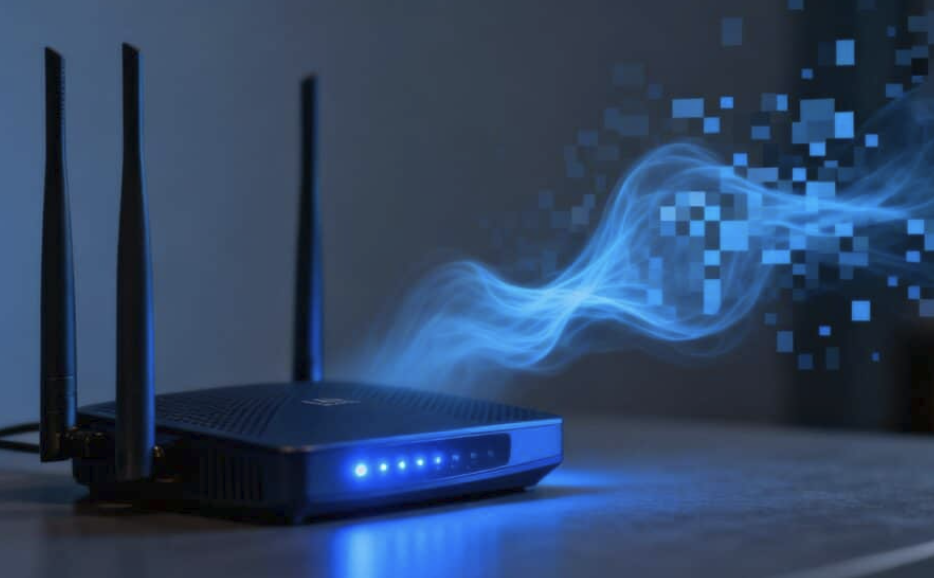
Routers with external antennas can often be aimed to favor coverage in a specific direction, and a surprising number of people never adjust them from the factory default position. Pointing antennas vertically tends to spread signal evenly around a single floor, while angling one antenna horizontally can help push coverage upward or downward toward a different level of the house.
A few minutes spent experimenting with antenna angle, paired with a speed test in the area that’s been struggling, can reveal a noticeably better position than whatever the antennas happened to be set to out of the box.
Rebooting the Right Devices in the Right Order
Restarting equipment remains one of the single most reliable fixes for a wide range of connection problems, clearing out minor software glitches that quietly build up over weeks of continuous, uninterrupted operation.
The order matters more than people often realize. Start by unplugging the modem, waiting about thirty seconds, then plugging it back in and waiting for it to fully reconnect to the internet service before restarting the router. If the modem and router happen to be separate devices, restarting them in the wrong order, or restarting both at exactly the same time, can leave one device trying to reconnect to another that hasn’t finished starting up yet.
Setting Up a Regular Reboot Schedule
Rather than waiting for a problem to appear, scheduling a router and modem restart every week or two, even when everything seems to be working fine, prevents some of the gradual slowdowns that come from weeks of uninterrupted uptime. Many routers include a built-in scheduling feature for exactly this purpose, so once set, it requires no further thought or manual effort.
Resetting Versus Restarting: Knowing the Difference
A restart simply power-cycles the device and clears temporary memory, while a factory reset wipes all custom settings, including the Wi-Fi password and any specific configuration changes made since setup.
These two actions get confused often enough that it’s worth being explicit: a factory reset should be a last resort reserved for serious, persistent problems, not a routine maintenance step, since it means reconfiguring the network from scratch afterward. Most everyday connection issues respond to a simple restart long before a full reset becomes necessary.
Securing Your Network From Unwanted Devices
A slow connection isn’t always caused by a technical glitch somewhere in the equipment. Sometimes it’s simply the result of more devices pulling bandwidth than the network was ever really set up to handle, including a few devices that shouldn’t be connected at all.
- Check the list of connected devices: most router apps or admin pages show every device currently connected, making unfamiliar ones easy to spot.
- Change the default Wi-Fi password: factory-set or weak passwords make it easier for a neighbor or passerby to join the network without permission.
- Enable WPA3 or WPA2 encryption: these are the current standards for keeping a wireless network secure, and older options like WEP offer very little real protection.
- Set up a separate guest network: this keeps visitors off the main network while still giving them internet access.
- Update the router’s firmware regularly: manufacturers release updates that patch security weaknesses as well as performance issues.
Finding even one or two unfamiliar devices quietly connected to a home network, and removing them, can free up a surprising amount of bandwidth for the devices that belong there in the first place.
Separating Smart Home Devices Onto Their Own Network
Smart home gadgets, from light bulbs to security cameras, often have weaker security than phones and computers, and a growing number of routers now support a dedicated network specifically for these devices.
Placing smart home gadgets on their own network, separate from the one used for laptops, phones, and work devices, limits how far a compromised gadget could reach into the rest of the home network if it were ever targeted. This separation also tends to improve performance slightly, since dozens of small, constantly-connected smart devices no longer compete directly with higher-bandwidth activities like video calls or streaming on the main network.
Upgrading Equipment That’s Holding You Back
Sometimes the honest, if less exciting, answer to a persistent Wi-Fi problem is that the equipment itself has simply aged out of being able to keep up with how a modern household uses the internet today.
A router that’s five or more years old may not support the newer Wi-Fi standards built to handle many more devices at once, far more efficiently than older hardware from that earlier generation was ever designed to. Internet speeds and the sheer number of connected devices in an average home have both grown substantially over the past several years, and a router built for an earlier, simpler era of internet use can quietly become the bottleneck even when the internet service itself is fast and perfectly reliable.
A few signs tend to indicate an upgrade will help more than any other fix at this point:
- The router predates the current internet plan: a router bought years before a faster plan was added may not support the full speed being paid for each month.
- Wi-Fi struggles even in the same room as the router: this often points to failing hardware rather than a placement or interference issue.
- The connected-devices list regularly maxes out: some older routers have a hard limit on how many devices can connect well at once.
- Firmware updates are no longer available: a manufacturer that’s stopped supporting a model has also stopped patching its security and performance issues.
Matching Equipment to Household Needs
A small apartment with just a handful of devices has very different needs than a sprawling multi-story house with dozens of smart home gadgets, streaming devices, and several people working from home at the very same time.
Rather than buying the most expensive router available, matching the equipment’s coverage range and device capacity to the actual size and usage pattern of the household tends to produce the best value, whether that means a single stronger router or a mesh system spreading coverage across multiple points.
Recognizing Signs It’s Time to Replace the Modem Too
The router often gets blamed for problems that really originate with an aging modem, especially in households that haven’t swapped equipment in several years. A modem that frequently drops its connection to the provider, runs noticeably hot to the touch, or simply predates the current internet plan’s advertised speeds can quietly cap performance no matter how good the router connected to it is.
Checking with the internet provider about the modem’s age and whether it supports the current plan’s full speed is a step worth taking before assuming a new router alone will solve a persistent problem.
Extending Coverage to Dead Zones in the House

Even a well-placed, perfectly modern router can still struggle to reach every corner of a larger home, especially one with multiple floors, thick walls, or an unusual, sprawling layout.
- Mesh Wi-Fi systems: multiple coordinated units placed throughout the home extend coverage far more evenly than a single router trying to reach every room alone.
- Wi-Fi extenders or repeaters: a more budget-friendly option that rebroadcasts the signal, though often at a somewhat reduced speed compared with the main router.
- Powerline adapters: these use a home’s existing electrical wiring to carry a network signal to a distant room, which can work well in homes where wireless signal struggles to pass through walls.
- Dedicated access points: wired directly to the router through an ethernet cable, these provide strong, consistent coverage in one specific area without relying on a wireless relay.
Placing Extenders Where They Really Help
An extender placed too close to the main router adds little value, while one placed too far away may struggle to pick up a strong enough signal to rebroadcast effectively. The ideal placement sits roughly halfway between the router and the dead zone, close enough to receive a strong signal but far enough to make a real difference in the area that needs it.
Comparing Mesh Systems and Extenders for Specific Homes
A mesh system tends to outperform a simple extender in larger or oddly shaped homes because each unit in a mesh system creates its own full-strength signal rather than simply rebroadcasting a weakened one, which keeps speed more consistent from room to room. An extender remains a reasonable, lower-cost option for a single stubborn dead zone in an otherwise well-covered home, while a mesh system makes more sense when multiple rooms or an entire floor struggle at once.
Thinking in terms of how many separate dead zones exist, rather than treating coverage as one single problem, helps decide which solution fits the situation better.
Final Thoughts
Most home Wi-Fi problems trace back to a short list of familiar causes: poor router placement, outdated equipment, network congestion, or simple software glitches that a reboot clears away. Working through fixes in order of effort, starting with a reboot and a router repositioning before considering new equipment, resolves the majority of issues without any real cost. A quick check of status lights and a wired-versus-wireless speed test narrows down the cause faster than guessing at random fixes.
Securing the network from unwanted devices, separating smart home gadgets onto their own network, and matching equipment to the household’s actual size and usage pattern round out a setup built to last for years. A little attention to placement, maintenance, and the right hardware for the space turns a frustrating, unreliable connection into one that quietly works in the background exactly as it should.
Read more about News PinUp
Frequently Asked Questions
Why does my Wi-Fi slow down in the evening?
Evening slowdowns are often caused by network congestion, both from other devices in your own home all streaming or gaming at once and from a provider’s broader network experiencing peak demand across many households in the same area at the same time. A wired speed test during a slow period can help determine which side of the connection is responsible, and running the same test at a quieter hour gives a useful comparison point.
How often should I restart my router?
Restarting every one to two weeks is a reasonable habit for most households, and many routers allow this to be scheduled automatically overnight so it causes no real disruption to anyone in the house. Restarting immediately whenever a problem appears is also a reasonable first troubleshooting step before trying anything more involved.
Does the number of connected devices really slow down my Wi-Fi?
Yes, every additional connected device shares the same available bandwidth, and a household with dozens of smart devices, streaming services, and multiple people working online at once can put real strain on an older router not built to handle that much simultaneous traffic.
Is a mesh Wi-Fi system worth the cost for a small apartment?
For a small apartment, a single well-placed router is often enough, and a mesh system may be more than necessary. Mesh systems tend to show their value most clearly in larger homes with multiple floors or unusual layouts where a single router struggles to reach every room no matter how it’s positioned.
Can old wiring in my house affect Wi-Fi signal strength?
Wiring itself typically doesn’t interfere with Wi-Fi, but the building materials surrounding that wiring, like plaster, brick, or metal lath, can weaken a wireless signal passing through walls and floors. This is a common reason older homes experience more dead zones than newer construction with simpler, thinner wall materials throughout.
Should I contact my internet provider or troubleshoot on my own first?
Starting with a basic reboot and a wired-versus-wireless speed test takes only a few minutes and resolves a large share of common issues on its own. If both wired and wireless speeds come back slow, that’s a good signal to contact the provider, since the problem likely originates outside the home network entirely.
