


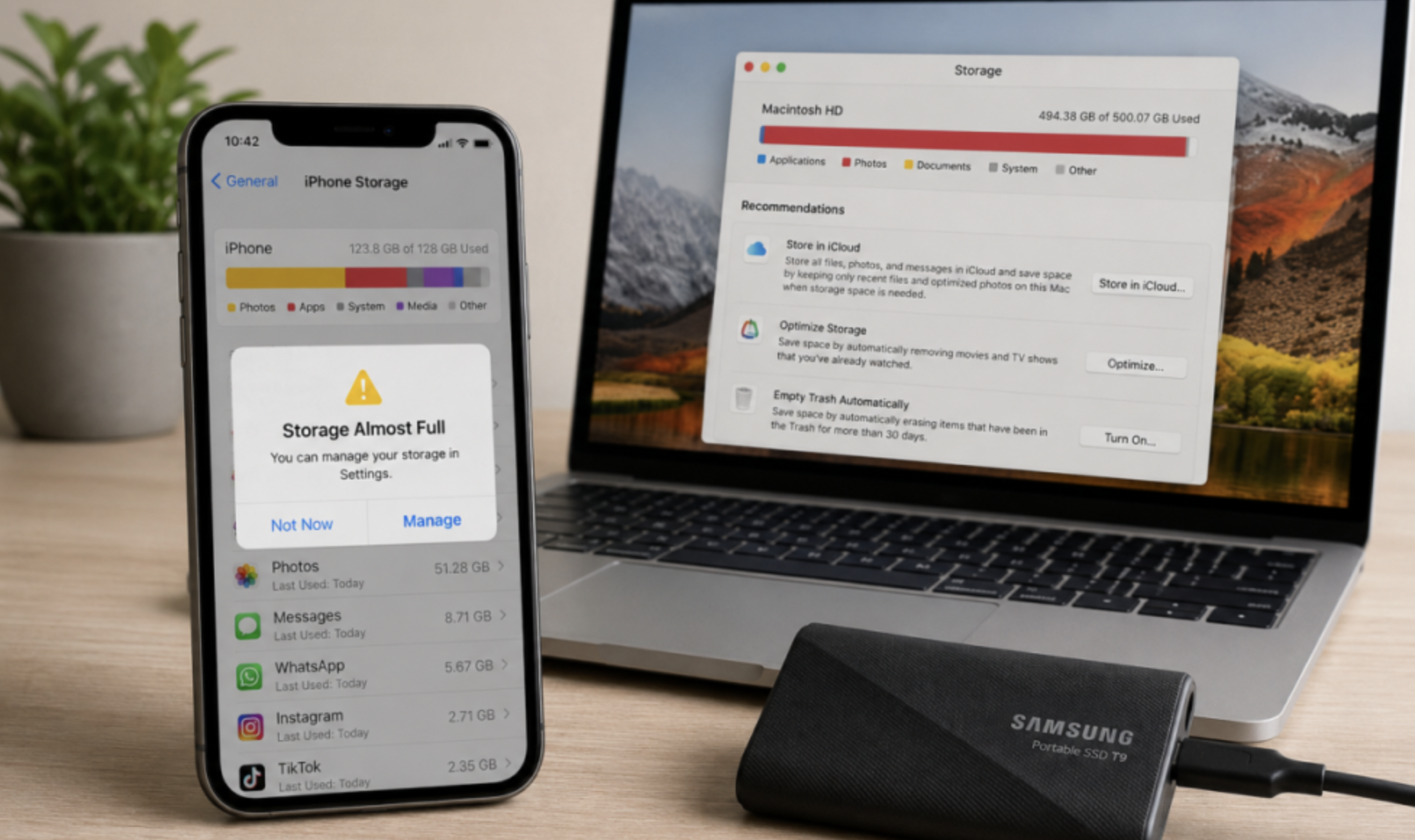
The “storage almost full” notification has a way of showing up at the worst possible moment, usually right as you’re trying to take a photo of something you’ll want to remember. Most people’s first instinct is to start deleting photos, which works but feels like throwing away keepsakes just to make room for an app update.
The better approach treats storage management as an ongoing habit rather than a once-a-year panic, with several different strategies working together so no single category of file ever has to be sacrificed entirely just to make a bit more room.
This guide walks through where space really tends to go, how to back files up safely, and how to build a routine that keeps a phone running smoothly without ever facing that warning again.
Finding Out Where the Space Is Going
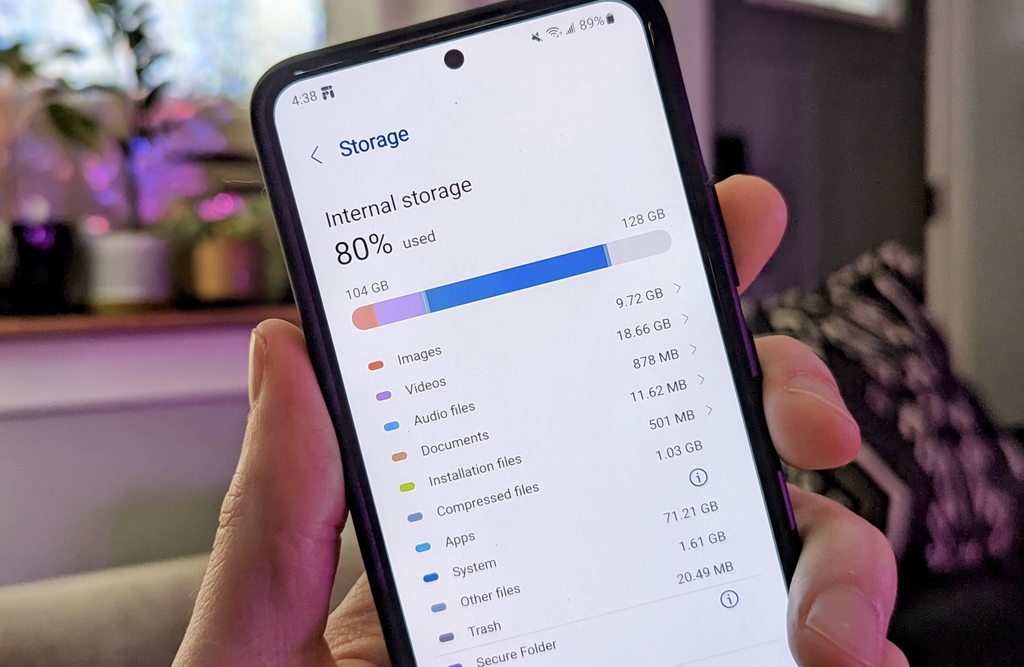
Before deleting anything, it helps to know where the space is going, since the biggest space hogs are rarely what people assume. On most phones, a storage breakdown screen tucked into the settings menu shows exactly how much space photos, videos, apps, and system files are each consuming.
Videos are almost always the biggest surprise. A few minutes of 4K video can take up more space than hundreds of photos combined, and many people record far more video clips than they realize, especially short ones captured and forgotten.
Apps themselves are usually a smaller slice of the pie than people expect, though a handful of large games or apps with extensive cached data can still eat up several gigabytes each, sometimes rivaling an entire year’s worth of saved photos on their own.
Reading the Storage Breakdown Screen Correctly
The storage breakdown screen can be misleading if read too quickly, since some categories overlap in ways that aren’t obvious at first glance. “Other” or “System” categories often bundle together cached data, temporary files, and sometimes even parts of the operating system itself, which means a large “Other” category doesn’t always point to something you can safely clear.
Tapping into each category individually, rather than trusting the summary percentages alone, gives a clearer picture of where real, reclaimable space is sitting versus where it’s tied up in files the operating system truly needs to keep running.
A simple habit worth building here is checking this screen every few months rather than waiting for the “storage full” warning to appear. Catching a ballooning video folder or an app with runaway cached data early means addressing it with a quick cleanup rather than a rushed, stressful purge right when storage is critically low. A few categories are worth a specific glance on that breakdown screen each time:
- Videos: the fastest-growing category for most people, and the easiest one to let slide unnoticed.
- Large individual apps: a single game or media app can quietly outgrow everything else combined.
- Messaging app storage: media sent and received in chat threads often hides inside the messaging app’s own storage total.
- Downloads and documents: a catch-all folder that rarely gets checked but steadily fills with forgotten files.
Backing Up Photos and Videos to the Cloud
Cloud backup is the single most effective tool for freeing up space without losing anything, since it moves files off the device while keeping them fully accessible.
- Enable automatic cloud backup: most phones offer a built-in photo backup service that uploads images over Wi-Fi without any manual effort.
- Choose a storage-optimized upload setting: many services offer a compressed option that saves significant local space while keeping photos sharp enough for everyday viewing.
- Set backups to Wi-Fi only: this avoids draining mobile data while still keeping the backup running consistently in the background.
- Confirm the backup finished before deleting originals: checking that a photo exists safely in the cloud before removing the local copy prevents accidental permanent loss.
- Consider a second backup service for extra security: relying on a single cloud provider leaves no backup if that account is ever compromised or deleted.
- Check the upload progress before traveling: a large backlog of unbacked-up photos can take hours to finish over airport or hotel Wi-Fi, so starting the upload before a trip avoids a slow scramble later.
Once photos and videos are safely backed up, local copies can be removed from the device through the backup app’s own “free up space” feature, which deletes only files already confirmed saved elsewhere.
Choosing Between Competing Cloud Services
Most people have access to more than one cloud backup option, whether that’s a service built into the phone’s operating system, a separate photo-focused service, or general cloud storage tied to an email account.
Each tends to offer a different free storage tier and a different approach to compression, and comparing the free allowance against how many photos and videos you really generate in a typical month helps decide whether a paid upgrade makes sense before storage runs out mid-month.
Splitting backup responsibilities across two services, one for photos and one for documents, can also stretch free storage further than relying on a single account for everything.
Managing Apps That Quietly Eat Storage
Apps accumulate on phones the way boxes accumulate in a garage, and most people have several they haven’t opened in months. A quarterly review of installed apps catches this buildup before it becomes a real problem, and the review itself rarely takes more than ten or fifteen minutes once it’s part of a regular routine.
Watching for Apps That Auto-Download Content
Some apps, especially ones built around media, podcasts, or offline maps, automatically download new content in the background without an explicit prompt each time.
A podcast app set to download every new episode of several shows, or a maps app caching offline data for cities you visited once and never again, can quietly accumulate gigabytes over months without the user ever noticing a specific moment it happened, since each individual download is small enough on its own to go unnoticed.
Checking each app’s own settings for an auto-download toggle, and switching it to manual or Wi-Fi-only, prevents this slow, invisible creep from undoing the benefits of an otherwise tidy storage routine.
Spotting the Worst Offenders
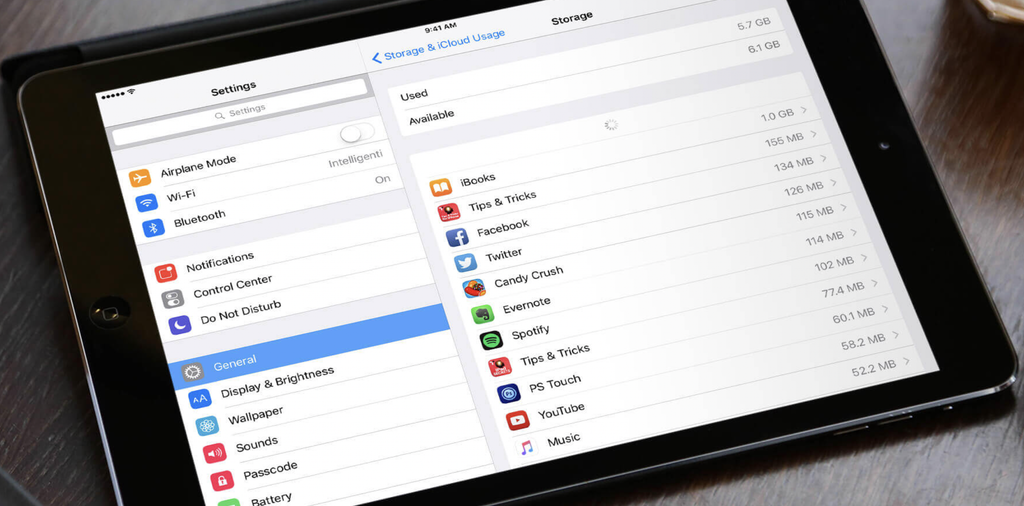
Social media apps, messaging apps with large media caches, and games with downloaded content tend to be the heaviest users. Checking the storage settings for individual app sizes, rather than guessing based on how often an app is opened, reveals which ones really deserve a closer look before anything gets deleted. It’s common to find a single rarely used game taking up more space than a dozen frequently used apps combined, simply because of how much downloaded content it bundles in.
Offloading rather than fully deleting an app is a useful middle ground on devices that support it, since this removes the app itself while keeping its documents and data intact, ready to redownload later without losing saved progress or settings.
Reviewing App Permissions While You’re In There
A quarterly app review is also a natural moment to check which apps have been granted ongoing access to location, contacts, or background data, since unused permissions can quietly run background processes that generate cached files even for an app you rarely open. Revoking access for apps that no longer need it, or that turned out to be used once and forgotten, trims both storage and a bit of battery drain at the same time, while also closing off a small privacy gap left behind by an app nobody opens anymore.
This isn’t a storage fix in the way deleting a large video is, but it closes the gap between an app sitting idle and an app actively building up data in the background.
Clearing Out Clutter You Forgot You Had
Beyond photos, videos, and apps, phones accumulate a surprising amount of miscellaneous clutter that adds up over time.
- Downloaded files and documents: PDFs, voice memos, and downloaded attachments pile up in a downloads folder that most people never check.
- Duplicate photos: burst shots and accidental duplicates from editing apps often sit unnoticed, and several phones now include a built-in duplicate finder.
- Old text message threads with large media attachments: years of shared photos and videos in messaging apps can represent several gigabytes on their own.
- Cached app data: temporary files that apps store for faster loading build up silently and can usually be cleared from the settings menu without losing anything important.
- Old chat backups and exported files: a one-time export of a conversation or document, downloaded and then forgotten, often sits unused long after its original purpose passed.
- Unused voice recordings and screen recordings: these are easy to forget about but can take up far more space than expected, especially longer recordings.
Clearing Browser Data Without Losing Saved Logins
Web browsers quietly accumulate cached images, cookies, and site data every time a page loads, and this can add up to a surprising amount over months of regular use, especially for anyone who browses heavily on their phone rather than a computer.
Clearing cache and site data through the browser’s own settings menu, rather than deleting the app entirely, removes this buildup without logging you out of saved accounts or losing bookmarks, since those are typically stored in a separate place from the cache itself and survive a cache clear without issue.
Doing this once every few months alongside the broader clutter review keeps a browser app from quietly becoming one of the largest single apps on the device.
Organizing What You Keep So It’s Easier to Manage
Freeing up space once is useful, but building a lasting system prevents the same crisis from recurring every few months.
Creating albums or folders for photos you want to keep locally, separate from everything else, makes future cleanups faster since you won’t have to resift through thousands of images each time.
Setting a recurring reminder, even just once a season, to check storage and clear obvious clutter turns an occasional emergency into a five-minute maintenance task.
Sorting Photos as You Take Them, Not Months Later
The single habit that saves the most future effort, and the one most people skip, is sorting photos close to when they’re taken rather than letting thousands pile up unsorted.
A quick swipe through the camera roll at the end of each day or week, deleting the obvious blurry shots and duplicates while the context is still fresh in memory, is far faster and far less tedious than trying to sort through a year’s worth of mixed photos all at once during a single overwhelming session.
Many phones now support a simple “for your review” or “similar photos” prompt that surfaces likely duplicates automatically, which turns this habit into a passive few seconds rather than an active chore.
Building a Simple Folder Structure That Scales
A folder structure doesn’t need to be elaborate to be useful. A handful of broad categories, like one folder for people and events, one for screenshots and references, and one for everything else, covers most needs without requiring a complicated filing system borrowed from a professional photographer’s workflow.
The goal is a structure simple enough that sorting a new photo into the right place takes seconds, since a system that’s too granular tends to get abandoned the same way an overly ambitious meal plan or budget spreadsheet often does.
Deciding What to Delete Versus What to Keep Forever
Not every photo needs to live forever on a device, and being honest about which images matter makes space management substantially easier. Screenshots of directions, memes, and duplicate shots rarely need the same long-term protection as a photo from a wedding or a milestone trip.
- Keep forever: photos and videos tied to important events, people, and milestones that you’d regret losing.
- Archive to the cloud only: solid but not essential photos, like everyday snapshots, that don’t need to take up local device space.
- Review and likely delete: screenshots, blurry duplicates, and random shots taken by accident.
- Delete without a second thought: temporary files, expired app data, and old downloads with no lasting value.
- Keep locally for quick access: a small set of frequently referenced photos, like an ID document or a boarding pass, worth having available even offline.
Handling Videos Differently From Photos
Videos deserve a separate pass from photos for a simple reason: a short clip can consume far more space than even dozens of pictures, so grouping the review together with regular photo cleanup tends to undercount how much is really at stake.
A ten-second video of a child’s first steps or a brief clip from a concert is worth keeping forever, but a stack of accidental half-second recordings triggered by a pocket bump adds up fast and offers nothing worth the space.
Reviewing the video folder on its own, rather than mixed in with the general photo review, makes these easy deletions more obvious since the file sizes and durations are visible at a glance.
Final Thoughts
Freeing up phone storage doesn’t have to mean sacrificing the photos and videos that matter most. A combination of reliable cloud backup, a periodic app review, and a habit of clearing out forgotten clutter like downloads, browser cache, and cached app data keeps a device running smoothly without painful deletions.
Sorting photos soon after they’re taken, rather than letting a year of images pile up unsorted, makes every future cleanup faster and less overwhelming. Building a simple system for what to keep locally, what to archive, and what to delete outright turns storage management into a quick seasonal task rather than a recurring crisis.
The memories stay safe, the apps keep working, and that dreaded notification stops showing up at the worst possible time, replaced instead by a phone that quietly manages its own space in the background.
Frequently Asked Questions
Will deleting photos from my phone also delete them from the cloud?
It depends on your settings. If cloud backup is fully synced, deleting a photo from your phone can also remove it from the cloud account unless you’ve specifically set up a separate backup or archive. Checking your backup app’s deletion settings before clearing photos avoids this problem, and a quick test deletion of a single unimportant photo can confirm how your specific setup behaves before you clear anything you’d regret losing.
How much storage do I need on a new phone?
For most people, 128 gigabytes is a comfortable middle ground, while heavy photographers, videographers, or gamers may want 256 gigabytes or more. Cloud backup habits also factor in, since a device with strong cloud backup needs less local space overall, letting a smaller, cheaper storage tier work just as well as a larger one for someone who backs up consistently.
Why does my phone say storage is full even after I delete things?
Deleted files sometimes sit in a temporary trash or recently-deleted folder for a set number of days before being permanently removed, which means the space isn’t freed immediately. Emptying that folder manually, when the option exists, clears the space right away rather than waiting out the automatic deletion schedule.
Is it safe to delete cached app data?
Yes, cached data is temporary by design and apps will simply rebuild it as needed. Clearing it won’t delete your saved progress, login information, or personal data within the app itself, though the app may load slightly slower the first time it rebuilds that cache after being cleared.
Should I move photos to an external storage device instead of the cloud?
External storage, like an SD card or a small portable drive, works well as an additional backup layer, but it lacks the automatic, always-on convenience of cloud backup. Many people use both for extra peace of mind, keeping a cloud copy for easy access and a physical backup as a safeguard against account issues or service outages.
How often should I check and clean up my phone’s storage?
A quarterly check is enough for most people, though heavy photo or video users might benefit from a monthly glance at the storage breakdown screen to stay ahead of any buildup. Pairing the check with an existing routine, like the start of a new season, makes it easier to remember without needing a dedicated reminder.
