


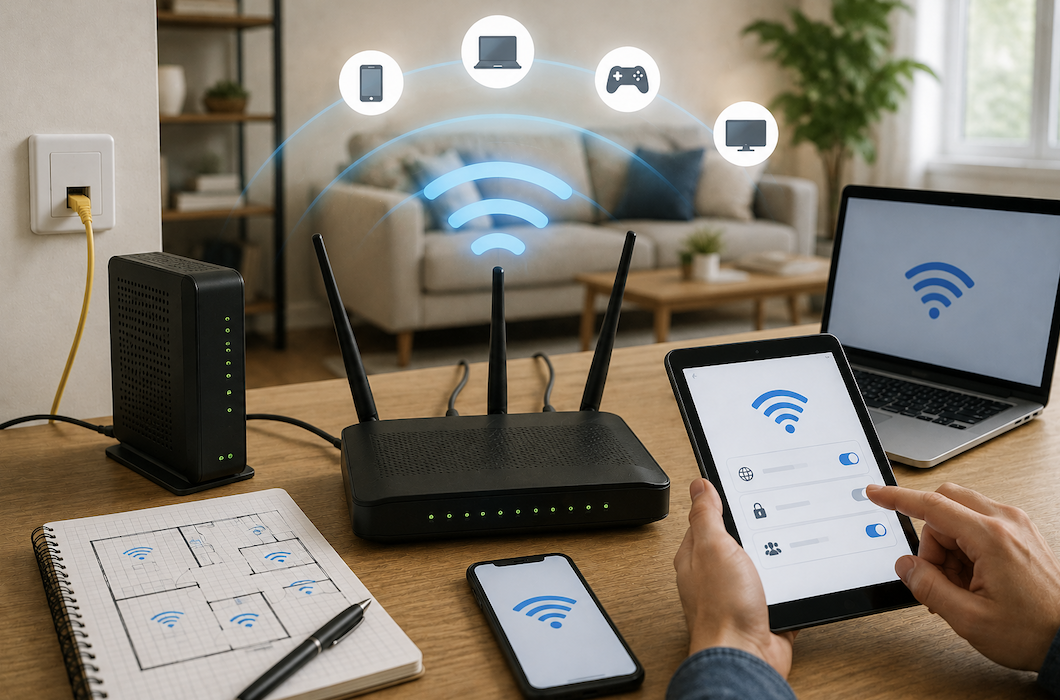
Setting up a home Wi-Fi network for the first time, or fixing one that’s never quite worked right, can feel more complicated than it needs to be. Between router placement, security settings, and a confusing array of technical terms on the setup screen, it’s easy to just accept mediocre coverage rather than actually troubleshoot the issue. The good news is that a solid, reliable home network comes down to a handful of understandable principles, not deep technical expertise.
Understand the Basic Equipment Involved
A modem connects your home to your internet service provider, translating the signal coming from outside your home into something your home network can use. A router takes that connection and distributes it throughout your home, both through Ethernet cables to devices plugged in directly and wirelessly through Wi-Fi to your phones, laptops, and other devices. Many internet service providers offer a combined modem and router in a single device, sometimes called a gateway, which simplifies setup but offers less flexibility than separate devices if you later want to upgrade just one component.
Understanding this distinction matters because router placement and quality genuinely affect your Wi-Fi coverage and speed throughout your home, separate from your actual internet connection speed coming in from your provider.
Choose the Right Location for Your Router
Router placement has a bigger impact on your home Wi-Fi coverage than most people realize. Position your router in a central location within your home, rather than in a corner or a room at one end, since Wi-Fi signal radiates outward and a central location provides more even coverage throughout the space.
Elevate the router off the floor where practical, ideally on a shelf or table, since Wi-Fi signals travel better horizontally than through floors. Keep it away from thick walls, particularly concrete or brick, and away from large metal objects and appliances like refrigerators or microwaves, which can interfere with the wireless signal. Avoid enclosing your router in a cabinet or closet, even though this might be more visually appealing, since this significantly restricts signal strength throughout your home.
Set Up Strong, Distinct Network Security From the Start
When first setting up your router, changing the default administrator password is one of the most important security steps, since default passwords for common router models are widely known and searchable online, leaving your network vulnerable if left unchanged. Choose a strong, unique password specifically for the router’s admin settings, separate from your actual Wi-Fi password that devices use to connect.
For your actual Wi-Fi network password, choose something reasonably long and difficult to guess, while still being something you can realistically type into new devices without excessive frustration. Modern routers support WPA3 encryption, the current standard for wireless security, or WPA2 if your router doesn’t support the newer standard. Confirm your router is using one of these rather than an older, less secure protocol, which some routers may default to for broader device compatibility.
Understand the Difference Between 2.4GHz and 5GHz Bands
Most modern routers broadcast on two different frequency bands, and understanding the practical difference between them helps you get better performance from your network. The 2.4GHz band has a longer range and better ability to penetrate walls, but offers slower maximum speeds and is more prone to interference from other household devices and neighboring networks. The 5GHz band offers significantly faster speeds but a shorter range and reduced ability to penetrate solid obstacles.
Many modern routers combine both bands under a single network name, automatically directing devices to whichever band works best for their location and needs, which is generally the simplest approach for most households. If you have an older router that broadcasts these as separate networks, connecting devices that need to move throughout your home, like phones and laptops, to the 2.4GHz band, and stationary devices closer to the router, like a smart TV or gaming console, to the 5GHz band, generally provides the best overall experience.
Consider Whether You Need a Mesh System
For larger homes, homes with multiple floors, or homes with unusual layouts that create dead zones with weak or no signal, a single router may not provide adequate coverage throughout the entire space, regardless of placement optimization. Mesh Wi-Fi systems use multiple coordinated units placed throughout your home to extend coverage seamlessly, generally providing significantly better whole-home coverage than a single router, particularly in larger or more complex spaces.
If you’re currently dealing with persistent dead zones despite reasonable router placement, and your home is on the larger side or has an unusual layout, a mesh system is worth the additional investment over sticking with a single traditional router setup.
Keep Your Router’s Firmware Updated
Router manufacturers periodically release firmware updates that address security vulnerabilities and sometimes improve performance or add features. Many modern routers can update automatically if this feature is enabled in the settings, which is generally worth turning on if it’s not already active, since manually checking for and installing updates is a step people commonly forget to do consistently, leaving routers running outdated, potentially vulnerable firmware for extended periods without realizing it.
Set Up a Guest Network for Visitors
Most modern routers support creating a separate guest network, which allows visitors to access the internet without connecting directly to your primary network where your personal devices live. This adds a meaningful layer of security, since guest devices are isolated from your main network and can’t access other devices connected to it, and it’s a good habit to enable and use for anyone connecting to your Wi-Fi who isn’t a regular member of your household.
Troubleshoot Common Problems Systematically
If you’re experiencing slow speeds or connectivity issues, restarting your router and modem, unplugging them for about thirty seconds before plugging them back in, resolves a surprising number of temporary issues and is worth trying as a first step before more involved troubleshooting. If problems persist, checking whether the issue is specific to one device or affecting your entire network helps narrow down whether the problem is with your router, your internet service itself, or a specific device’s settings.
For persistent dead zones or weak signal in specific areas, testing your actual Wi-Fi signal strength in different locations throughout your home, using your phone’s built-in signal indicator or a dedicated Wi-Fi analyzer app, helps you identify problem areas concretely rather than relying on a general sense that “the Wi-Fi is bad” in a specific room, giving you actual data to work with when deciding whether router repositioning or additional equipment is needed.
Conclusion
Start with thoughtful router placement in a central, elevated location away from interference. Set up strong, distinct security for both your admin settings and Wi-Fi password. Understand your router’s band options and let it optimize automatically where possible. Consider a mesh system if you’re dealing with persistent coverage issues in a larger home. And keep firmware updated for both security and performance. These fundamentals, more than any single expensive piece of equipment, are what actually determine whether your home network provides reliable, secure coverage throughout your space.
FAQ’s
1. How often should I change my Wi-Fi password?
There’s no strict requirement to change it regularly if it’s already strong and hasn’t been compromised, unlike some online account passwords that benefit from periodic rotation. It’s worth changing if you suspect unauthorized access, after a significant number of people who no longer need access have had it, such as after a large gathering, or simply if you want added peace of mind.
2. Why does my Wi-Fi work fine in some rooms but not others?
This is typically due to distance from the router combined with physical obstacles, walls, floors, and large appliances that weaken the signal as it travels. Repositioning your router to a more central location, or adding a mesh system or Wi-Fi extender for larger or more complex homes, are the most effective solutions for this common issue.
3. Is it worth buying my own router instead of using the one from my internet provider?
Often yes, particularly if you’re currently renting a router and paying a monthly equipment fee, since purchasing your own router outright frequently pays for itself within a year or so compared to ongoing rental fees. Purchased routers also sometimes offer better performance and more configuration options than basic provider-supplied equipment, though it’s worth confirming compatibility with your specific internet service provider before purchasing.
4. Can neighbors or strangers access my Wi-Fi network without my permission?
Not if you’ve set up strong WPA2 or WPA3 encryption with a genuinely difficult-to-guess password, which makes unauthorized access very difficult for casual attempts. This is exactly why changing default passwords and using strong encryption during initial setup matters so much, since networks left with default or weak passwords are considerably more vulnerable to unauthorized access.
5. Do I need to restart my router regularly even if it seems to be working fine?
Occasional restarts, every few weeks or so, can help clear minor software glitches and maintain optimal performance, even if you haven’t noticed obvious problems. Enabling automatic firmware updates, if your router supports this feature, handles much of the maintenance burden automatically, reducing how much manual attention your network genuinely requires to keep running smoothly.
